
Operation Round Up
Welcome, Teachers, Administrators, and Bookkeepers!
**Please scroll to the bottom to begin the application. Click here to log in to your account.**
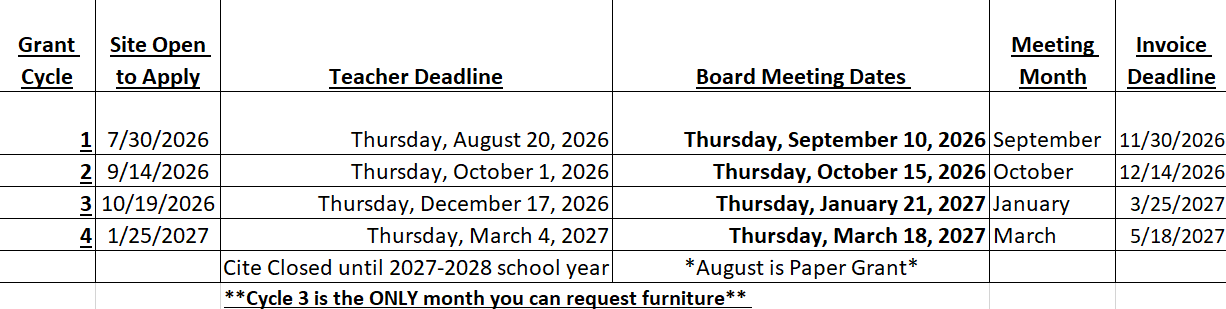
Grant Application Schedule:
What's changed?
- New platform for submitting grant applications and invoices.
- Same login for grant application and invoice submissions.
- Teachers manage the full process - grant applications and invoice submissions.
- No administrative approval/denial step before board review.
- Ability to look back and see your current and past grant applications through your login.
Teacher Information
Grant Submission Requirements
1. Follow the application instructions.
- Grants that are incomplete or do not follow the application instructions will not be sent to the board for approval.
2. Do NOT submit multiple grants for the same item from the same school.
- Instead, follow the instructions/prompts in the grant application to submit a grant application that includes 2 or more teachers. Multiple grants from the same school for the same item/items will not be sent to the board for approval.
3. Grant requests should be a maximum of $750 per teacher. Grants over $750 per teacher will not be approved.
4. Submit one PDF document with photos of the item/items you are requesting.
- Your grant application must include a single PDF document.
- For multiple items or items from different vendors, place all item images in a single Word document (multiple pages are fine).
- Save the Word document as a PDF.
- Upload the single PDF with your grant application.
Invoice Submission Requirements
After board approval, you will receive an email containing a link and instructions for submitting your invoice.
To receive reimbursement:
- Submit an itemized invoice/receipt. If it is not itemized, you will not be reimbursed.
- Invoices/receipts may come from multiple vendors, but they must be combined into one PDF document.
- Include all pages of each invoice/receipt.
Do not include:
- Confirmation emails
- Purchase order (PO) requests
- Grant number
- Teacher name
These are no longer required on the invoice submission.
Need help?
- If you have issues logging into your account, please follow the technical information below.
- If you have questions about invoices, please contact your school bookkeeper. If you still need help, please email operationroundup@cullmanec.com and include your school's bookkeeper.
Bookkeeper Information
Bookkeepers are no longer responsible for submitting grant invoices or receipts. Teachers will now upload all invoices and receipts directly through their grant account.
To help keep bookkeepers informed, teachers will be asked to forward their grant approval email after receiving approval notification. This forwarded email will include:
- Grant approval confirmation
- Approved item(s) and funding information
- Instructions for invoice submission
We will continue to track outstanding grants and will send 1–2 reminder emails to bookkeepers and administrators before the 60-day invoice submission deadline. This information will only be the teacher's name, grant #, and approved amount. ORU is not responsible for communicating the approved grant information to the bookkeeper. If you have questions about approved items, please reach out to the teacher to find out which items were approved and ask them to forward you their approval email.
Administrator Information
The administrative approval step has been removed from the grant process. Once a teacher submits a grant application, it will be sent directly to the Operation Round Up Board for consideration.
To keep administrators informed, we will continue to provide updates regarding outstanding invoices and ORU changes.
Technical Information:
- You will need to create a free Submittable account using your school-issued email.
- You can return to a saved draft of your work if you would like to finish filling out the form at a later date. There is an autosave feature, but you can also manually save your draft by clicking the button at the bottom of the form. Delete your saved draft and start the application over if necessary.
- Submittable works best on Google Chrome, Firefox, and Safari. Internet Explorer is not supported. Please make sure you are using a supported browser.
- We will follow up with you about your submission by email. Please be sure to safelist notification emails from Submittable and check the email you used to sign up for your Submittable Account regularly.
- View FAQs HERE.
Technical Questions?
Check out the Submitter Resource Center or contact Submittable Customer Support.
Technical Questions?
Check out the Submitter Resource Center or contact Submittable Customer Support.